GitHub Repo Watcher: a quieter way to watch your repos
GitHub’s notification inbox has a design philosophy: tell you everything, and let you sort it out. Someone labels an issue, a bot bumps a dependency, a colleague replies to a thread you commented on eleven months ago — it all lands in the same pile. So most of us do one of two things. We check the pile constantly, or we stop checking it at all.
GitHub Repo Watcher takes a narrower swing. It watches a handful of repos you actually care about and answers one question from your browser toolbar: is anything waiting on me right now?
Most of the time the answer is a small green dot. When it isn’t, you get a number.
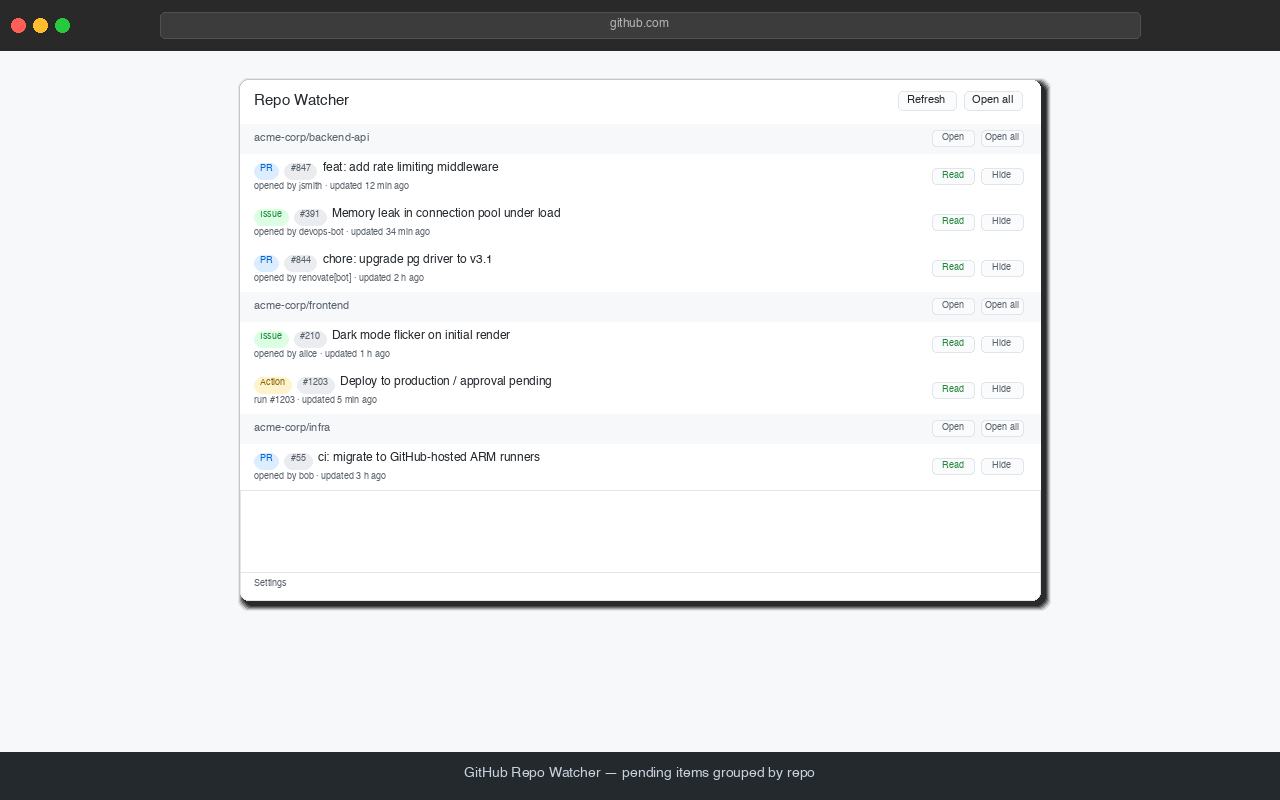
Everything waiting on you, grouped by repo. Three repos here; the badge on the toolbar would read 6.
What it actually watches
You pick the repos. For each one you choose what counts:
- Issues — open issues with new activity
- Pull requests — same, for PRs
- Actions — workflow runs sitting in the “waiting for approval” state
That last one is quietly the most useful if you work somewhere with deployment gates. A run that’s paused waiting for someone to click approve is invisible in your notification inbox, but it’s exactly the kind of thing that blocks a release while everyone assumes someone else is on it.
“New activity” means the item’s updated timestamp has moved since you last acknowledged it. Comments, labels, edits, review requests — anything GitHub counts as an update.
Getting set up
Install it. Grab it from the Chrome Web Store — one click and Chrome handles the rest.
Sign in. Open the extension’s Settings and click Sign in with GitHub. A GitHub tab opens, you paste in the short code it gives you (it’s already on your clipboard), and you approve. That’s the whole thing — there’s no access token to generate, copy, paste, or remember to rotate in six months.
The extension asks for read-only access to issues, pull requests, Actions, and basic repo info. It cannot write anything to your repositories. Not comments, not labels, not code.
Give it access to the right repos. This is the one step that trips people up, so it’s worth thirty seconds of explanation.
Signing in tells GitHub who you are. It doesn’t automatically decide which repos the extension may read. Those are two separate things, and how much you need to care depends on what you’re watching:
| What you want to watch | What you need to do |
|---|---|
| Public repos — anyone’s | Nothing. Signing in is enough. |
| Your own private repos | Install the app on your account. Takes one click. |
| A company or org’s private repos | An org owner has to install it. |
For that last case, use Manage repository access in Settings. If you’re an org member but not an owner, picking the org there sends the owners an install request rather than failing silently. Settings also shows you where the app is currently installed, so you can tell at a glance whether a missing repo is an access problem or a typo.
Add your repos. Type them as owner/repo, tick Issues / PRs / Actions per
repo, and save. Use the ▲▼ arrows to reorder — that order controls how the popup
groups things, so put the repo you care most about on top.
One thing to expect: when you first add a repo, everything currently open shows
up as pending. That’s deliberate — it’s the same view you’d get filtering that
repo by is:open. Clear it once and you’re at a real baseline from then on.
Living with it
Click the toolbar icon and you get the view from the screenshot above — pending items, grouped by repo. From there:
- Click an item — opens it in a new tab and marks it read.
- Middle-click — opens it in a background tab and leaves it unread. Good for triage: fan out five tabs, keep the list intact, deal with them in order.
- ✓ — marks it read without opening it. For the “oh, that’s fine” ones.
- 🙈 — hides it for good. Some threads just aren’t yours; this stops them resurfacing every time somebody adds a comment. Hidden items are listed in Settings if you change your mind.
- Open all — opens everything pending for that repo and clears it.
Desktop notifications show up when something new appears, with a Mark as read button right on the notification, so the common case never needs a click into the browser at all.
The bit I like most
If you were the last person to comment on an issue or PR, the extension quietly marks it as read for you.
The logic being: you already replied. The ball is in their court. You don’t need a badge reminding you about a conversation you’re waiting on someone else to continue. It’s a small thing that removes a surprising amount of noise once you have a few chatty repos in the list.
(This applies to issues and PRs. Waiting Actions runs always show up, because those genuinely are blocked on somebody clicking a button.)
Settings worth knowing about
Poll interval — every 5 minutes by default. Turn it down if you want to be closer to real time, up if you’d rather it stay out of the way. Minimum is one minute.
Only show issues/PRs assigned to me — the single biggest noise reduction available if you’re in busy repos. Off by default, because plenty of people watch repos they aren’t assigned in.
Popup font size — 10 to 22 pixels, because default UI text sizes are a matter of taste and eyesight, not correctness.
Where your data lives
Nowhere but your browser.
There’s no server behind this thing. Your access token, your repo list, and the cached list of pending items all sit in Chrome’s local extension storage on your own machine. The extension talks to GitHub’s API directly, using your own credentials, and to nothing else. No analytics, no telemetry, no phoning home, nobody’s dashboard counting how many issues you have open.
Signing out clears the token locally, and it expires on its own within eight hours regardless. If you want to cut access off entirely and immediately, revoke the app under GitHub → Settings → Applications.
When a repo doesn’t show up
Nine times out of ten it’s one of three things:
- A typo in
owner/repo. Easy to rule out. - The app isn’t installed where it needs to be. For private repos this is by far the most common cause — and GitHub deliberately returns “not found” rather than “not allowed” for repos an app can’t see, so the two look identical from outside. Settings spells out both possibilities when a repo fails to load.
- It’s genuinely quiet. No new activity means nothing pending. Working as intended.
If a repo isn’t loading, hit Re-check now in Settings after fixing access — no need to reload anything.
Is it for you?
If you live in your GitHub notification inbox and like it there, probably not.
If you’ve got three to ten repos you’re responsible for, you’ve muted your notification email, and you have a low-grade background worry that something is sitting there waiting for you right now — that’s exactly the itch this scratches.
A green dot means you’re clear. That turns out to be worth a lot.